Find and manage invoices
Find the right record
Section titled “Find the right record”Open Invoices and select Drafts, Unpaid, Paid, or Closed. Search by client or invoice number. Use the available filters, sorting, and saved views to revisit the same set of invoices.
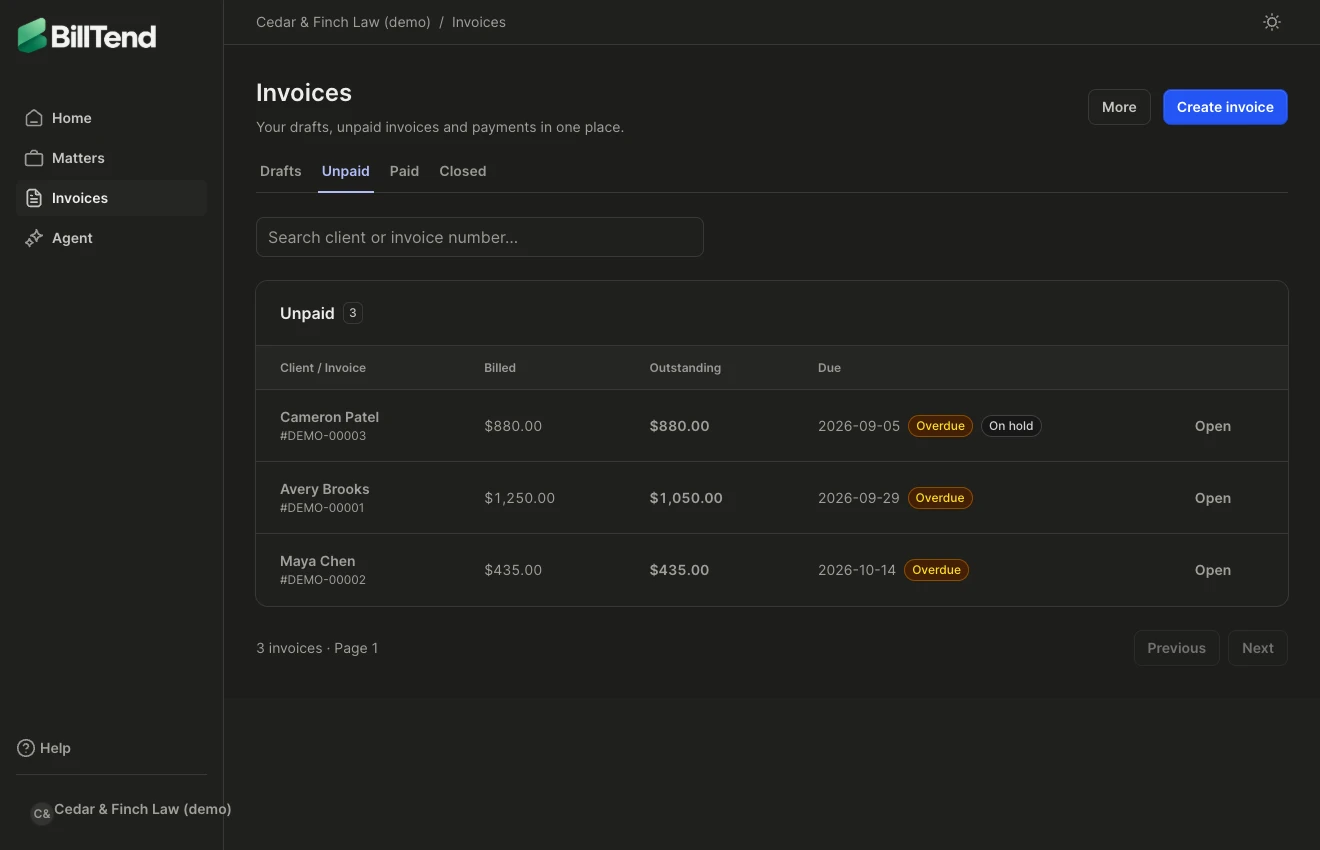
Open a row to see the billed amount, outstanding balance, and any hold, write-off, or void. If an invoice has a generated document, you can reopen its PDF. Imported invoices may only have a balance and the details supplied by their source.
What the invoice tabs show
Section titled “What the invoice tabs show”- Overview summarizes the document, balance, credits, payment instructions, and available corrections.
- Payments lists manual payments, credits, and reversals. Use it to record or correct a payment.
- Activity shows changes such as payments, approved reminders, replies, holds, and shared specialist updates.
- Follow up, when available, contains reminders, holds, and notes. On layouts that use the More menu, open More → Follow up & notes.
Use the invoice tools
Section titled “Use the invoice tools”- More → Owner & next steps assigns a responsible teammate, sets priority, records a follow-up decision, or snoozes the invoice until a later date. For disputes, pause follow-up and document why before resuming.
- More → Files shows invoice attachments and the available upload and download actions. Verify the client and invoice before adding any document.
- More → Messages shows client correspondence. Use Activity for the audit history and shared specialist updates.
- More → Ask Tend about this invoice opens the assistant with that invoice as context.
Use the invoice-list tools to open Upcoming actions, review scheduled work, cancel a pending action, or investigate a delivery that needs review.